Copy Tasks
You can copy a task, and its corresponding comments and time accounting information, in the workflow.
- Right-click a task on the Workflow panel.
-
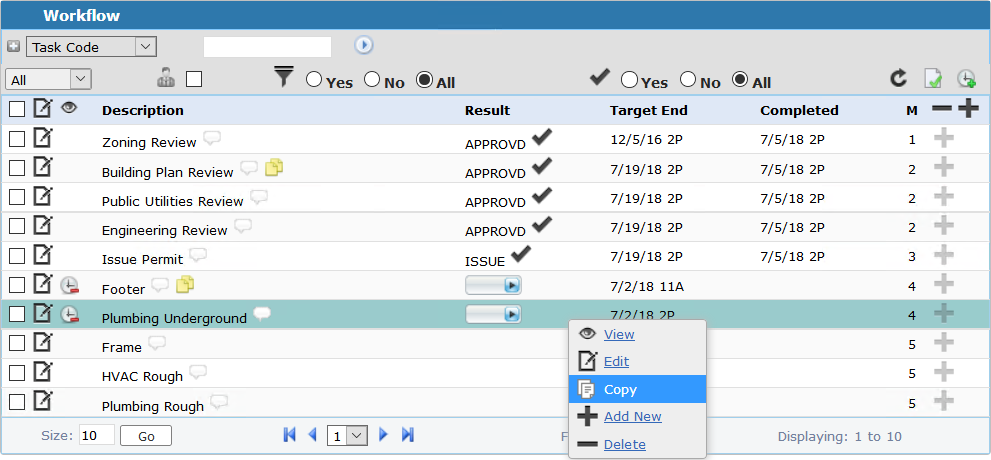
The Copy: Task panel opens.

- The Assigned To field populates automatically, but can be changed. Remove the current login ID and use the Lookup for Responsible User Id icon to assign a new inspector or employee.
- Use the appropriate lookup icon to assign a Department Code, Division Code, Hearing Type, or Discipline Code to the task.
 NOTE: The Result Code, Task Complete Date, and Task Complete By fields are used to mark the task as complete. See Complete a Task for more information on completing tasks.
- Select the check box next to Comments and Time Accounting to copy any comments or time accounting information attached to the task.
-
The copied task is inserted into the same milestone as the original task.
NOTE: See Edit a Task for information on editing information on a task.